


Introduction
A counter app is an Android application that displays a number and increments it whenever the user taps a button. This app teaches the core fundamentals that every developer must master.
A counter app is a straightforward beginner level Android app that is built for entertainment and understanding android development. Despite its short size, it teaches fundamental Android development principles including event management, UI components, and real-time screen updates. Usually, the application has a button that initiates an increment action and a number display. Beginners can learn how Android Java’s activities, views, and user interactions operate with this project. It is a great place to start when developing more complex Android apps because it can be expanded with reset buttons, decrement options, saved state, or visual feedback.
Why a Counter App?
- Core learning project: A counter app forces you to understand basic UI elements (e.g. Button, TextView), event handling, and state management.
- Foundation for bigger apps: Concepts learned here (click listeners, UI updates, state saving) are reused in more complex apps examples include click-based games, tracking metrics, counters for tasks or habits.
- Easily extendable: From a simple increment button, you can add decrement/reset buttons, long-press for fast increment, persistent storage, themes, and more.
What You’ll Build
- An elegant user interface
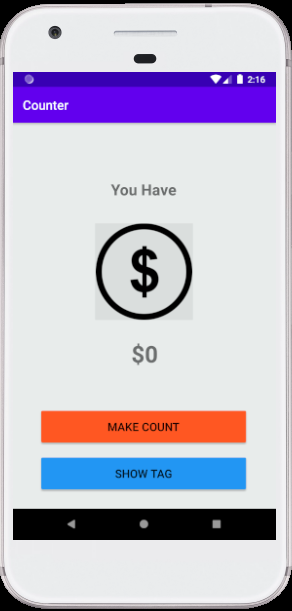
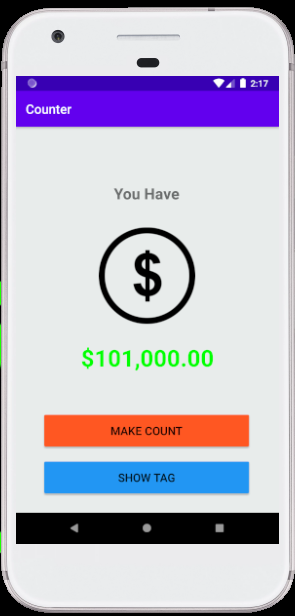
- Show a number/dollar in a text view
- Display an image
- Two buttons one for increasing the number/dollar
- Another button for showing the tab
Why This Simple App Still Matters
Even though a counter app is trial, it’s more powerful than it seems:
- It enforces understanding of the entire Android basics stack. Like layout XML, activity lifecycle, event system, UI thread, state management.
- Adds confidence as you finish a working app quickly, get instant feedback, and understand end-to-end flow.
- Once you understand this, you can reuse the same pattern for click-driven features in more complex apps.
- You learn to write clean code, avoid common pitfalls, and make maintainable Android projects.
How a Counter App Works
The Screen Layout Displays the Number
A counter app uses Android’s layout system to position the number on screen using structures like LinearLayout or ConstraintLayout. The displayed value updates instantly when changed in the activity. This layout rendering ensures UI elements are arranged and refreshed correctly.
The Button Detects User Actions
The app responds to user interaction through click listeners. When the button is tapped, Android triggers an event callback that tells the activity to execute specific logic, such as increasing the counter. This event-driven model ensures instant reaction to user input.
The Count Value Lives in Memory
The counter value is held in the activity’s memory as a variable. Each tap increases this stored value before it’s pushed back to the UI. This simple in-memory state management is the basis for real-time data handling in all Android applications.
The App Updates the UI
Every time the count changes, the activity programmatically updates the displayed text. Android’s UI thread ensures these updates appear instantly, maintaining smooth visual feedback. This real-time rendering process is essential for dynamic interfaces.
The App Saves State on Rotation
When the device rotates, Android destroys and rebuilds the activity, which resets unsaved data. Using state bundles allows the counter value to persist through configuration changes, preventing data loss and maintaining continuity. This technique is a core Android development principle.
How to use this project ?
- Download the project & extract the source code.
- Open android studio IDE.
- Set up the project.
- Execute the code using an android emulator.
- Start using the app.
- Enjoy!
If you’re learning Android development, building a counter app is the fastest way to understand how layouts, clicks, UI updates, and activity states work in real-world apps. Start with this simple project, then expand it with new features. Push yourself to add state saving, animations, or persistent storage.
Download the source code for this project by clicking the button below and get hands on experience by yourself.